Get to the inbox, and know why when you don't.
Three things decide whether email arrives: who you are, how readers react, and what the email looks like. Swarm checks all three, step by step, and shows you each one in the dashboard.
-
Step 1
Send from a domain of your own
Every install can send from its shared domain from the first minute. A sending domain of your own puts your name in the From address and builds a reputation that is yours alone. Add it under Sending & delivery, copy each record into your DNS, and press Check now.
- DKIM signs your emails so providers can prove they were not changed on the way.
- SPF and the bounce record say which servers send for you and where bounces go.
- DMARC at quarantine or reject is required before a domain sends. Home shows the record to add.
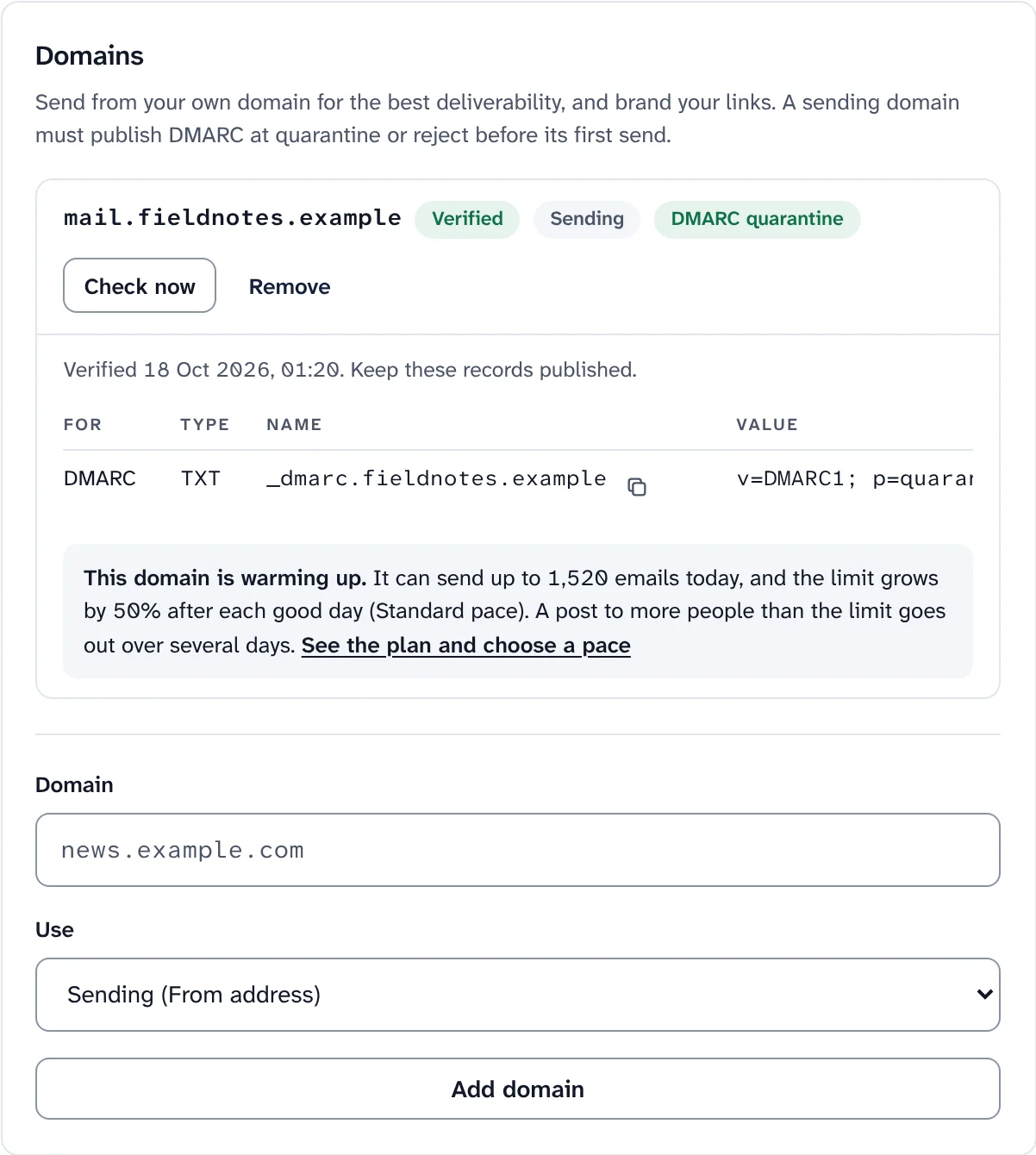
A verified sending domain with its records. -
Step 2
Warm up a new domain, by itself
Mailbox providers distrust a domain they have never seen. Swarm gives each new sending domain a daily limit that grows after every good day, and spreads a large send over the following days. Nobody is skipped and nobody gets it twice.
- Engaged readers first: people who opened or clicked in the last 90 days get the day's limit before quiet readers.
- An automatic pause when more than 2% of a day's emails bounce or more than 0.08% are marked as spam, with an email to the owners.
- A plan for your rhythm: choose every day, a few times a week or once a week, and see the date your whole list fits in one day.
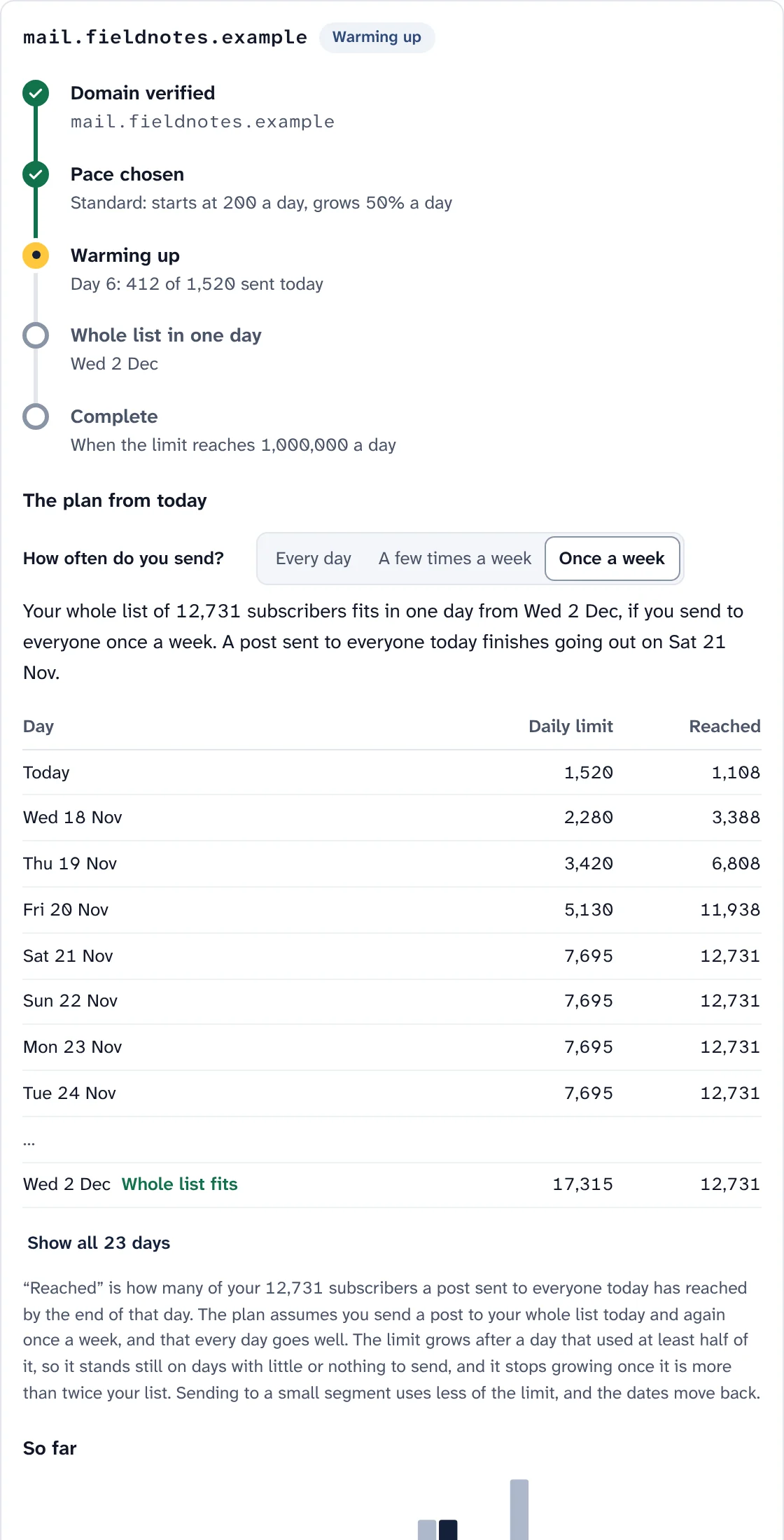
The warm-up route and the plan from today, for a weekly sender. Warm-up paces for a domain of your own Pace First day Growth after a good day Good for Careful 50 25% A brand-new domain, or a list you have not emailed in a while Standard 200 50% Most publications. Every domain starts here Fast 500 100% A list that opens your emails often Custom 10 to 100,000 5% to 200% When you know what your domain can take -
Step 3
Check every send before it goes
The send panel runs the checks before every send and again at the scheduled time. A check that needs attention stops the send, and says why next to the button.
- Checks: subject, content, links, sender, domain, subscribers and warm-up.
- Inbox advice that never blocks you: subjects in capitals, repeated punctuation, public link shorteners, links that look like phishing, mostly images, very large images.
- Size and accessibility: a warning above 102 KB, where Gmail cuts an email off, and for images without a description.
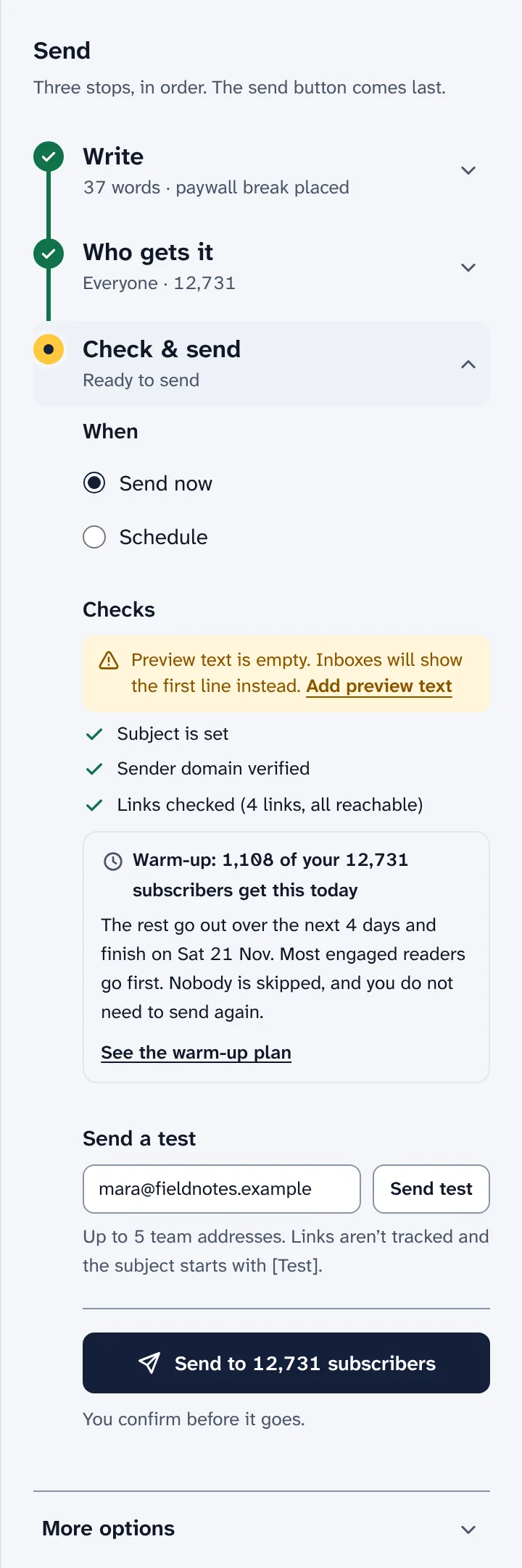
The checks in the send panel, with a warm-up note. -
Step 4
Stop mailing dead addresses, on your rules
Every bounce is classed from what the email service and the receiving server said. You choose when an address is stopped, and Swarm shows how many subscribers new rules would stop before you save them.
Paid subscribers are never stopped silently. Their address goes under Needs your attention, and the owners and admins get an email.
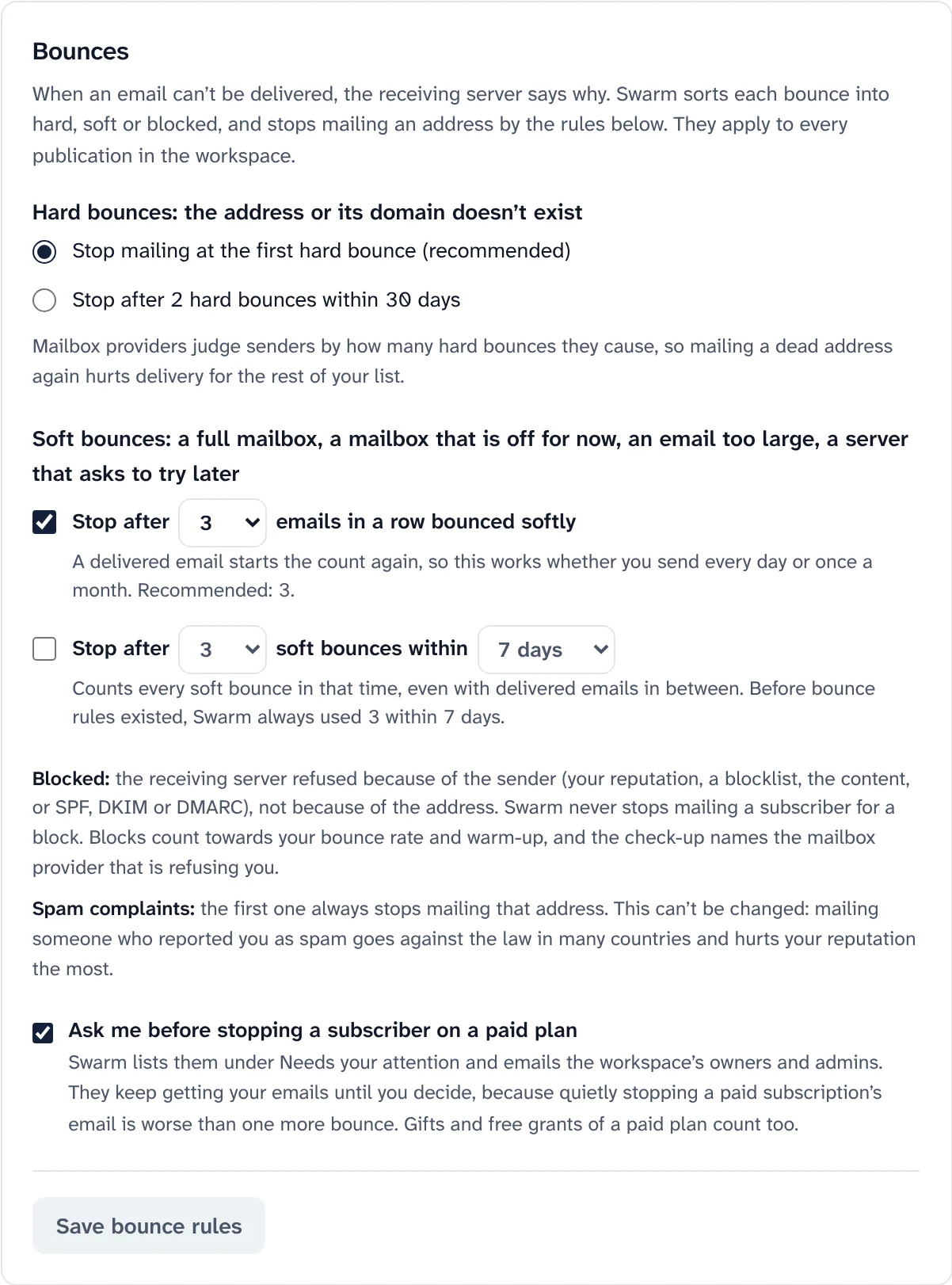
Bounce rules, shared by every publication in the workspace. How Swarm treats each kind of bounce Kind What it means By default Hard bounce The address will never work Stops mailing it at the first one Soft bounce A full mailbox, or a server asking to try later Stops after 3 emails in a row bounced softly Blocked Refused because of the sender, not the address Never stops mailing the subscriber; the check-up names the provider Spam complaint The reader pressed "report spam" Always stops mailing that address -
Step 5
Check addresses with DeBounce
Optional, with your own DeBounce account. Addresses are checked at signup, on import, when someone is added and across your whole list, and each gets a colour you can filter and segment on.
Set it up with
pnpm swarm enable debounce. The key stays a secret of the workers, and a whole-list check shows the credits it needs before it starts.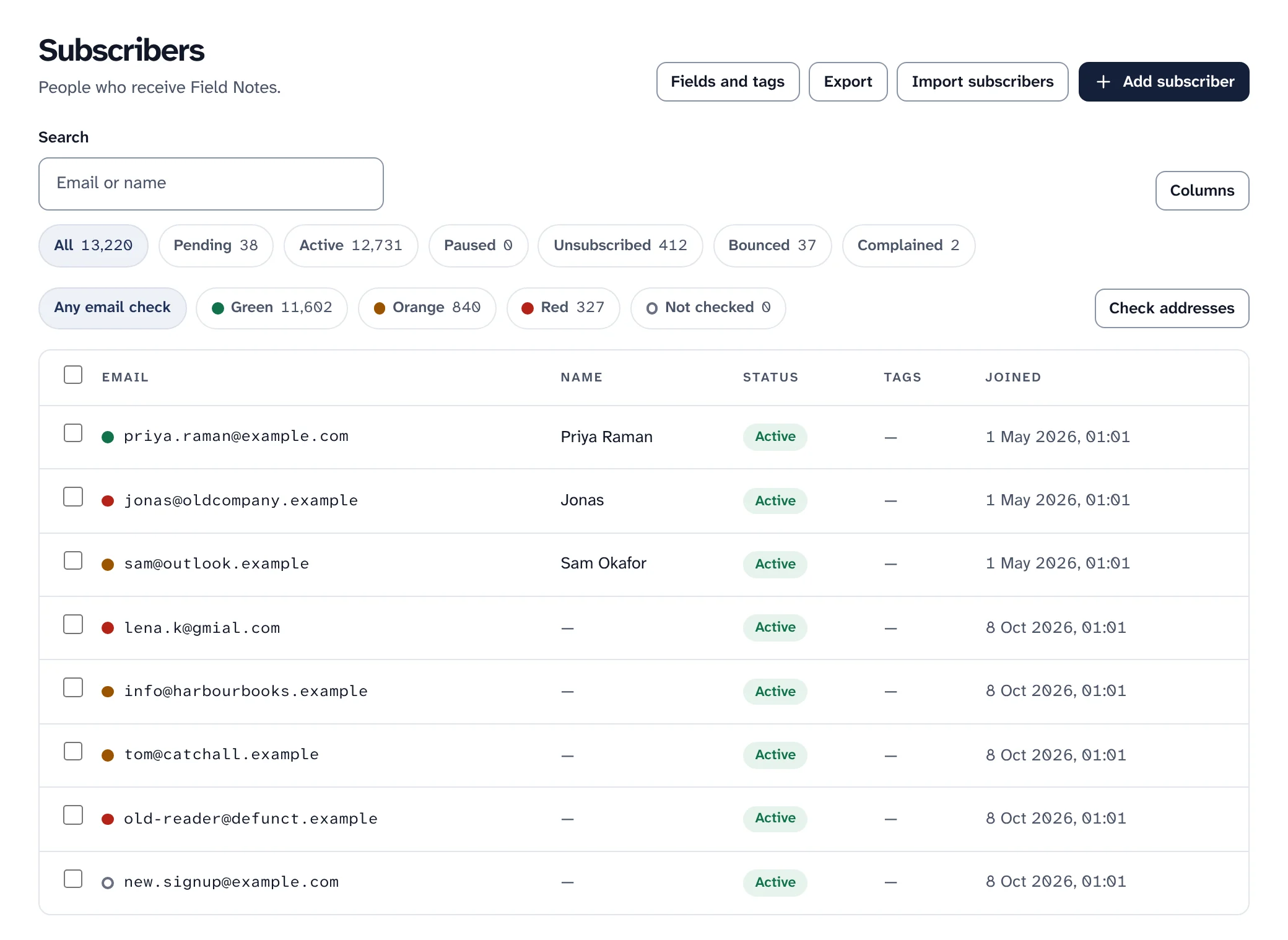
Email check colours on the Subscribers page. Email check colours Colour What it means At signup, by default Green The mailbox exists and takes email Accepted Orange Accept-all server, no answer, a team address or a throwaway mailbox Accepted Red Will bounce, not an email address, or a spam trap Turned away, with "Did you mean" when there is a suggestion -
Step 6
Keep to your email service's limits, with nothing lost
Tell Swarm your plan's limits per second, hour, day and month, or start from a preset. Everything the install sends counts together, and mail people are waiting for, such as sign-in links and receipts, keeps a tenth of each limit.
- An hour or a day: the rest of the send waits and carries on by itself when the window turns.
- A month, or a service that stops taking mail: the send pauses with everyone still waiting, the owners get an email, and an admin can choose Resume sending after the fix.
- Never sent twice: the report says how many are left and when it continues. Do not send again.
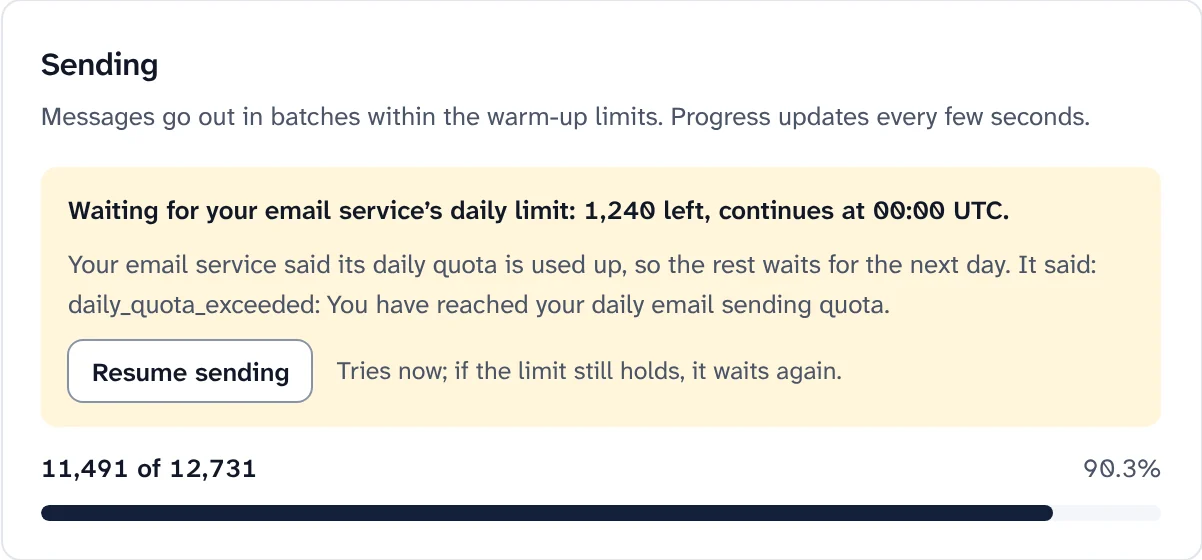
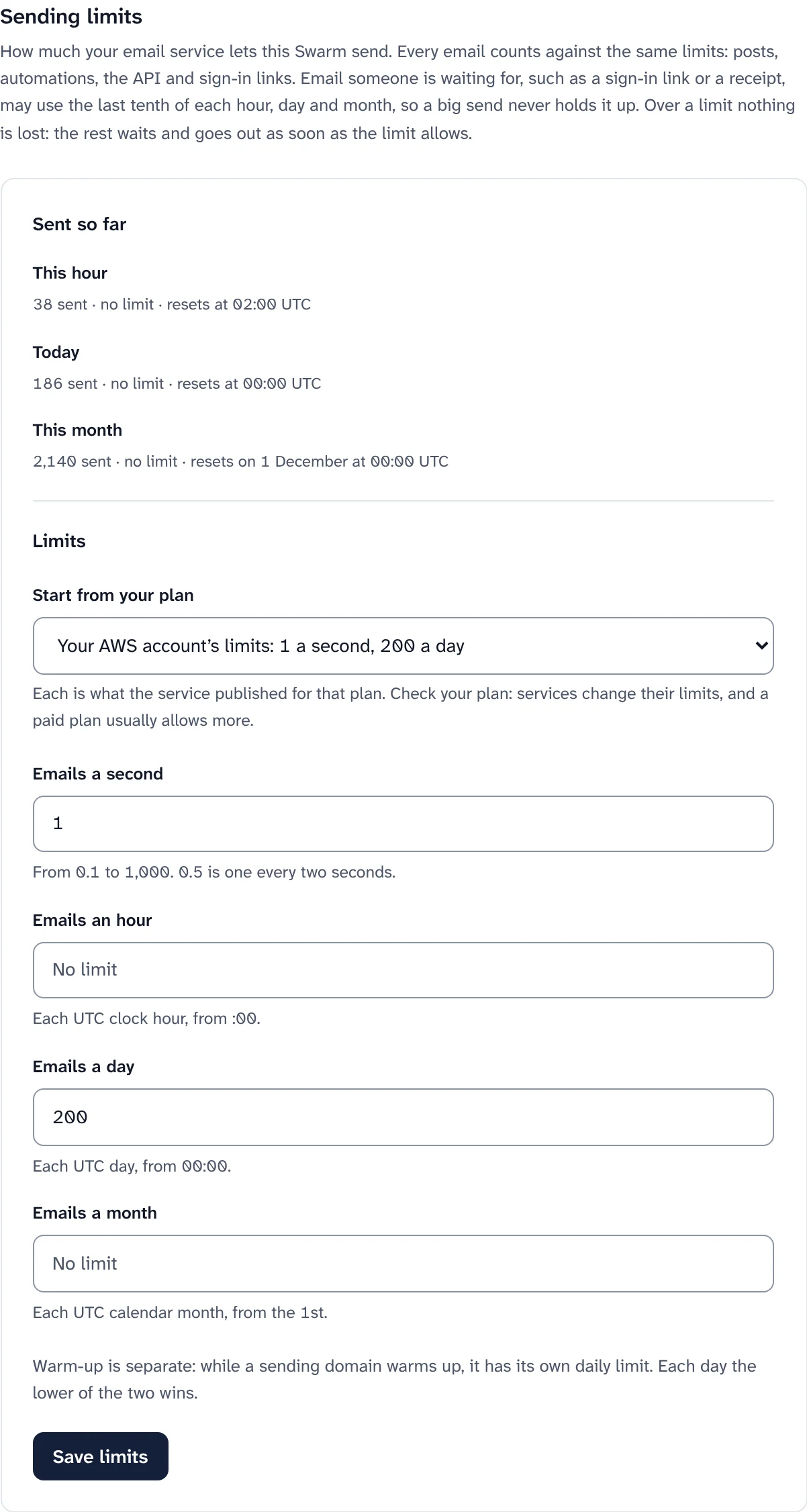
A send waiting for the daily limit, and the limits form. -
Step 7
Read the check-up, and fix from the top
The Deliverability page starts with one verdict and a list of what keeps your email out of the inbox, most harmful first. Each finding says what it means, the exact steps to fix it, and links to the right setting.
- What it looks at: your sender, DNS records, DMARC, bounce and complaint rates, mailbox providers that may be filing you as spam, warm-up, list hygiene, your footer address and domain blocklists.
- A score out of 100 that starts at 100 and loses 20 for each problem and 5 for each warning. It is a way to see progress, not a rating from any mailbox provider.
- Honest about limits: blocklists usually refuse automatic questions, so expect "Couldn't check" there, with a link to look your domain up yourself.
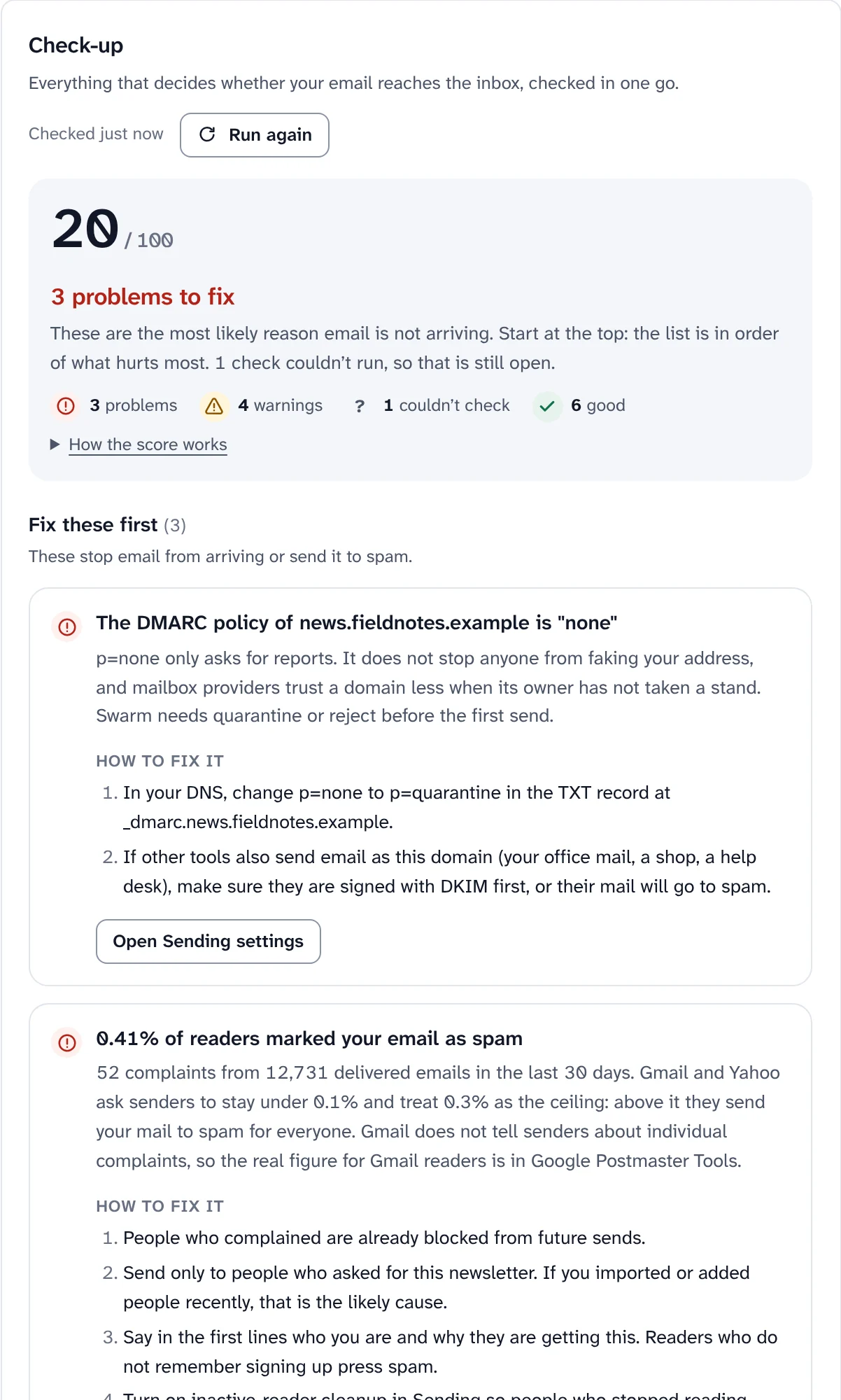
A check-up with problems to fix, most harmful first.
What Swarm does for you, and what it can't
Deliverability is mostly what your readers do. Swarm handles the parts software can, and tells you plainly about the rest.
- Signs every email with DKIM and sets the return path once your records are published.
- Adds one-click unsubscribe and a footer unsubscribe link to every newsletter, as Gmail and Yahoo require.
- Stops mailing addresses that bounce by your rules, and every address that complains.
- Leaves out privacy-proxy opens and link scanners, so open and click rates reflect people.
- Collects DMARC reports and shows who is sending as your domain.
- Unsubscribes long-inactive readers, if you turn that on. Paying subscribers are never removed.
What Swarm cannot do: see inside anyone's mailbox, see Gmail's complaint data, or change how a mailbox provider rates your domain.
For Gmail, the real complaint figure is only in Google Postmaster Tools. The deliverability guide explains it and the other free tools.
Start with a domain that is yours.
Install Swarm, add your sending domain, and let warm-up and the check-up do the rest.
Want to look first? pnpm swarm --dry-run shows every step and changes nothing.