From a first draft to the send report.
Write in an editor built for email and the web, check how it looks in an inbox, choose who gets it, and watch it go out. Every step below is the real dashboard.
-
Step 1
Start from a template, or a blank page
Press New post and choose a blank post, a template, or a copy of your latest post. Eight starters come with Swarm, each written as a guide to itself: use it, then replace the words with your own.
- Your own templates: save any post as a template, or import an HTML email you already use.
- A content calendar with planned dates for drafts, which never schedule anything by themselves.
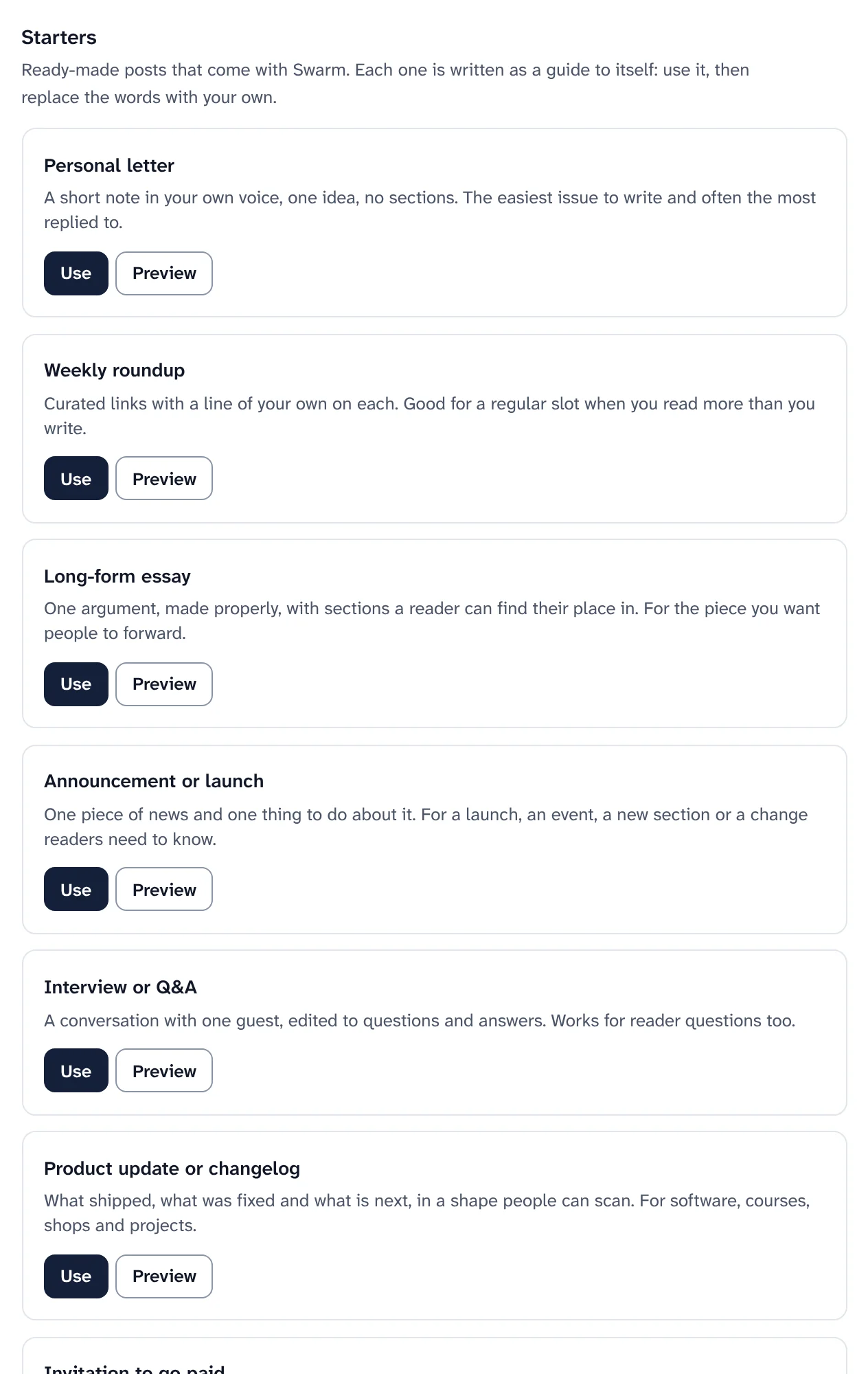
The starter templates that come with Swarm. -
Step 2
Write in an editor made for email
Fill in the subject and preview text and watch the inbox preview change. Then write: the toolbar has text styles, links, lists, quotes and merge tags, and Insert (or
/on an empty line) adds blocks.Your work saves as you type, and every save is kept in History, where you can name, compare and restore versions.
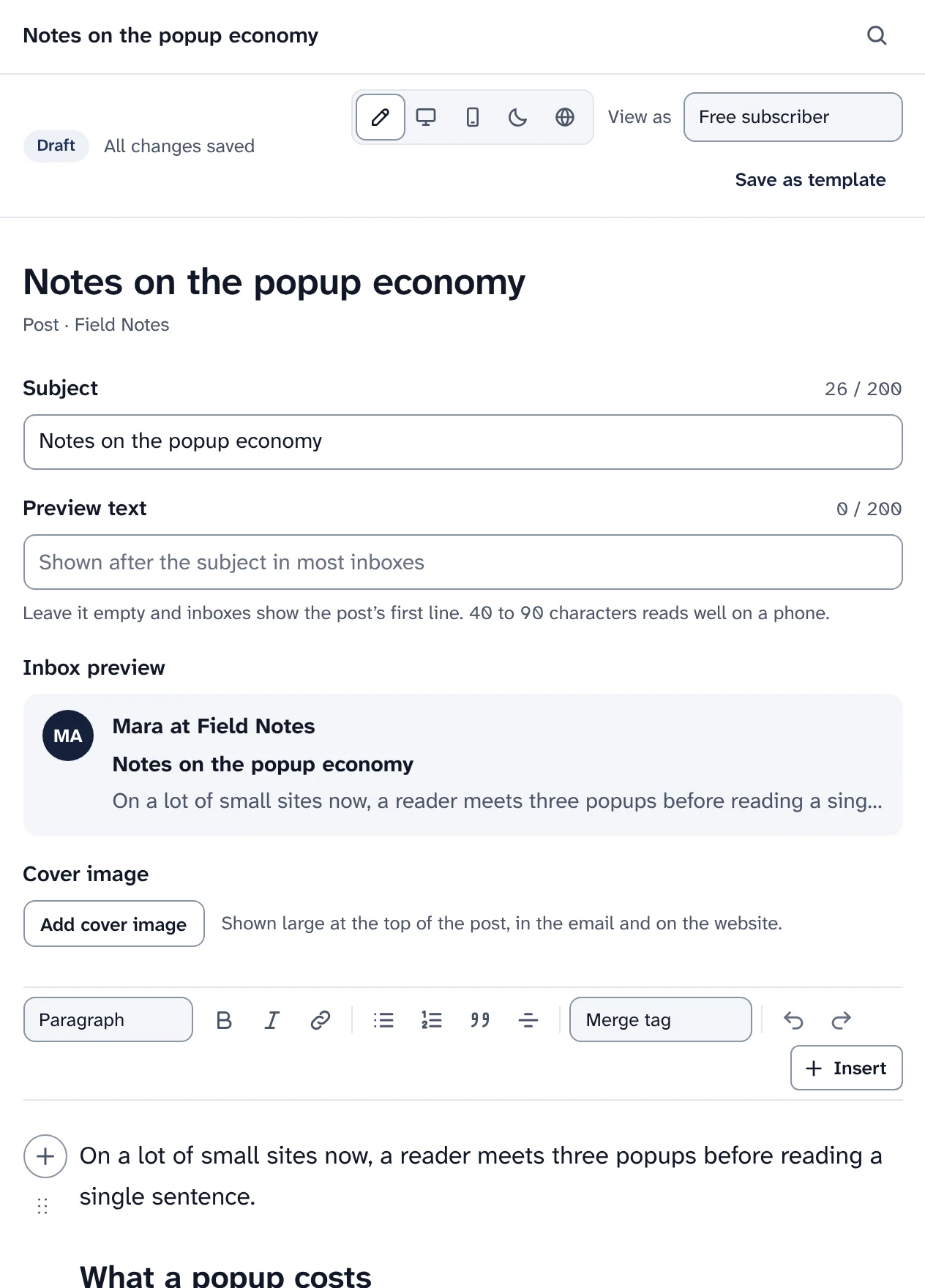
Subject, preview text and the inbox preview, above the post. Blocks in the editor Block What it is Image, File From your media library or a new upload, with alt text Button, Link card A large link, or a link shown as a card Quote, Callout, Divider For structure and emphasis Two columns, Embed, Footnote Side by side, a video or audio player on the web, a numbered note Poll A question readers answer with one click Paywall break Everything below it is for paying subscribers (the paywall) -
Step 3
Preview it as readers will see it
Switch between Edit, Email · desktop, Email · mobile, Email · dark and Web. With paid plans, View as shows the post as a free or a paid subscriber.
- Send a test to yourself and up to 5 teammates. It arrives with [Test] in the subject, and its links are not tracked.
- Emails built for every mail app: one frame that handles Outlook on Windows, dark mode and phones, checked in a browser so far.
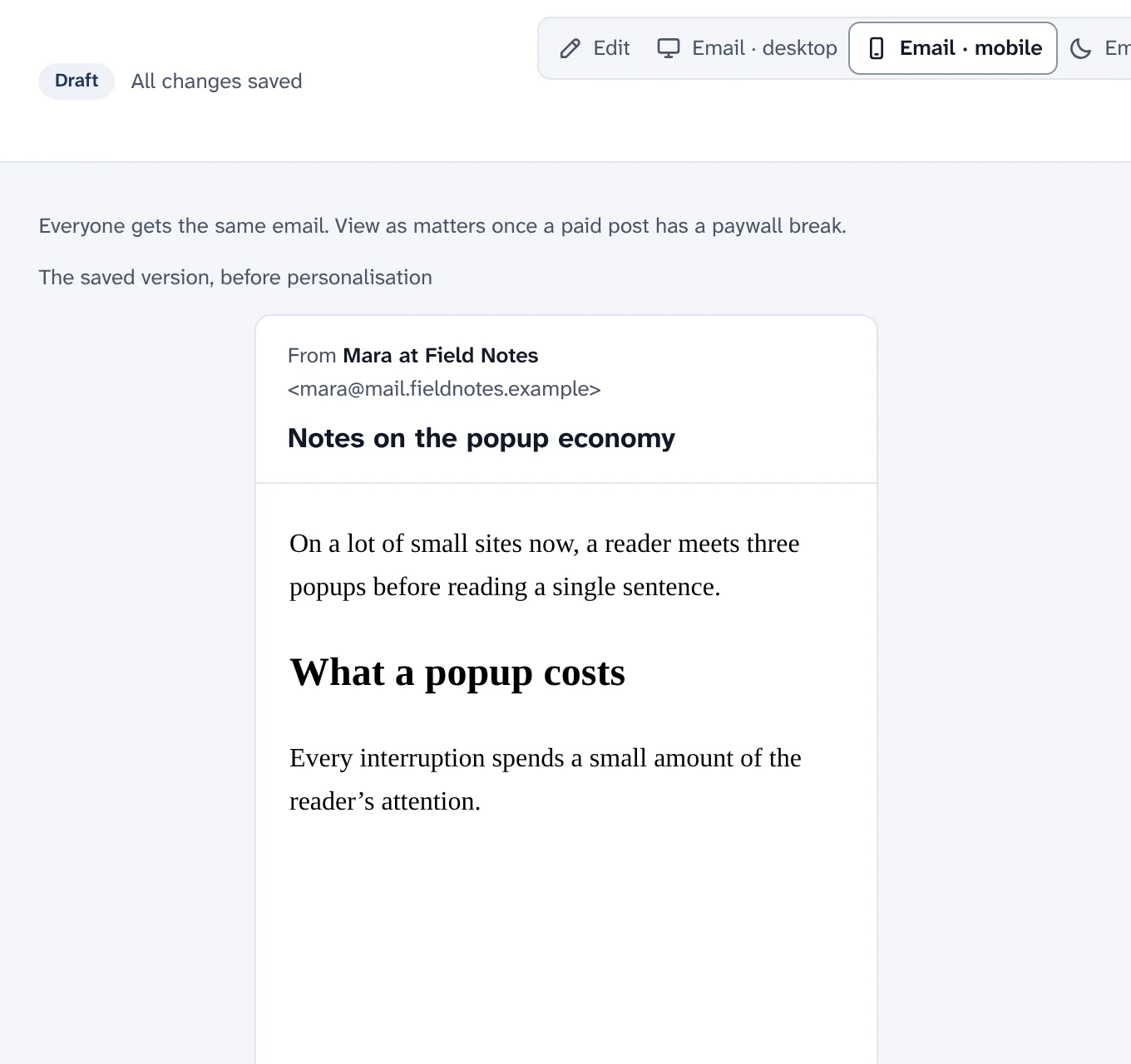
The email as a phone shows it. -
Step 4
Choose who gets it, check, and send
The panel beside the editor has three stops, always in this order. Who gets it is a deliberate choice: everyone, some segments, or segments to leave out. Nobody gets the same post twice.
- The checks must pass before the send button works, and a disabled button says why.
- Send to N subscribers, then confirm. While it goes out you can stop it; emails that left stay sent.
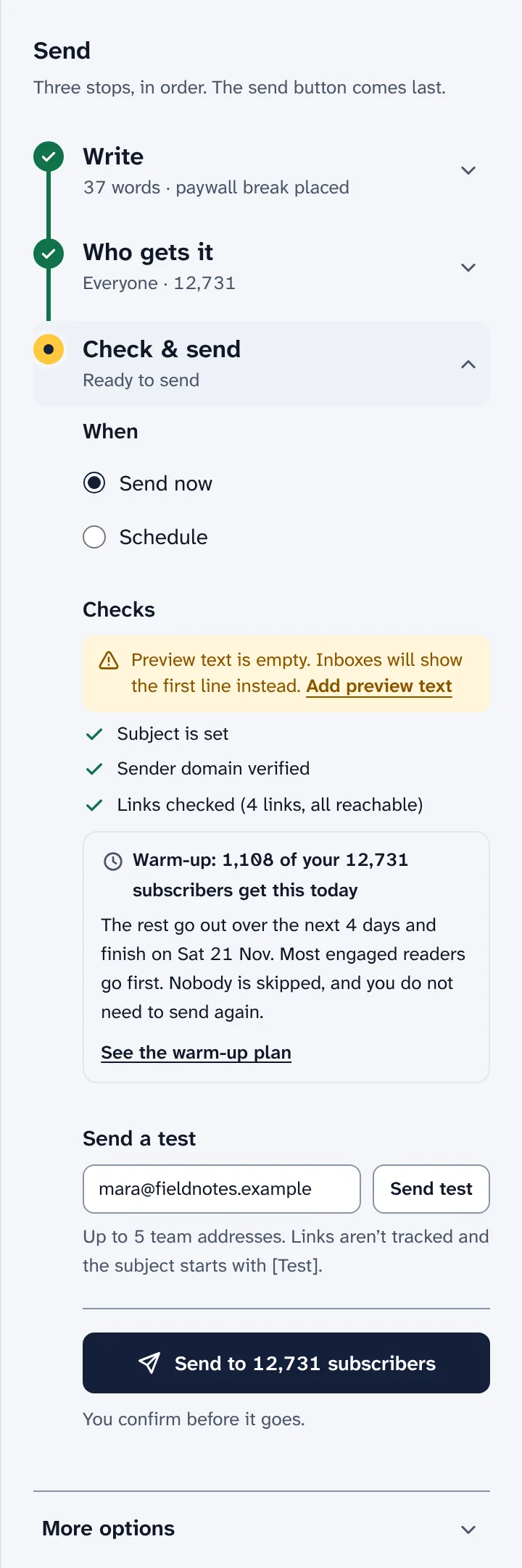
The send panel, with the send button last. -
Step 5
Schedule it, or send at each reader's best time
Choose Schedule, set the date and time in your time zone, and confirm. The checks run again at send time; if something is not ready, the post goes back to draft and Home tells you.
- Best-time sending: within 24 hours of your time, each reader gets the post at the hour they most often opened or clicked in the last 90 days.
- Readers with little history, and anyone who asked not to be tracked, get the time you chose.
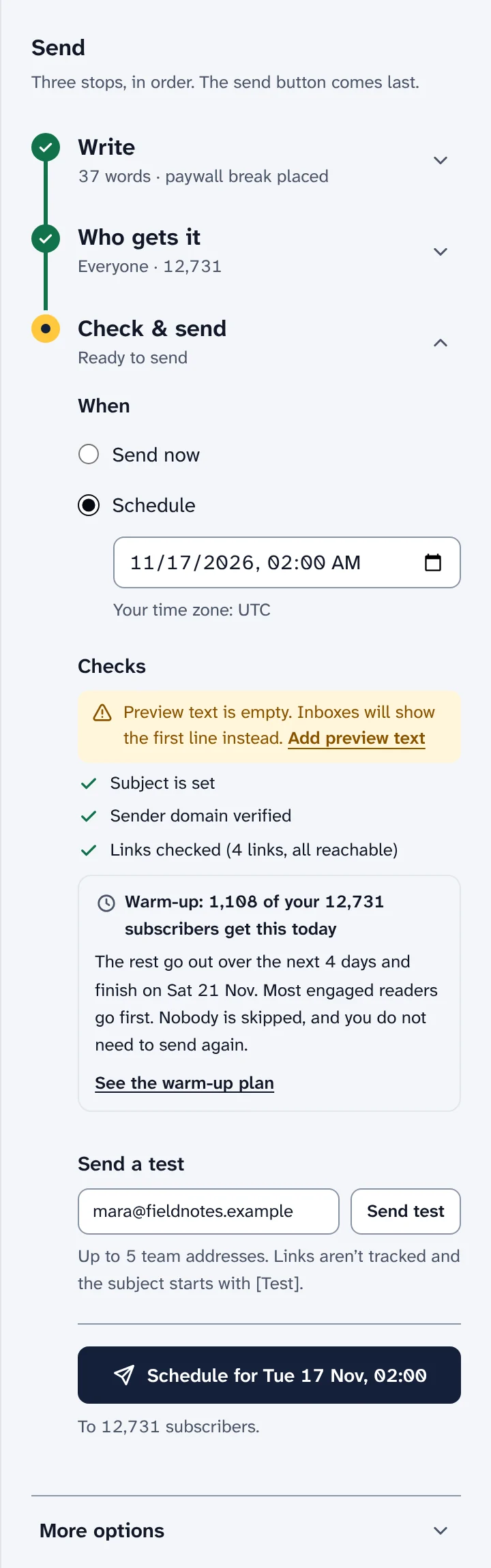
Scheduling a post from the send panel. -
Step 6
Test two subjects before everyone gets one
Under More options, choose a split test of the subject line and preview text, or of the content. Two or three versions go to part of the audience; the winner, by opens, clicks or a goal, goes to everyone else.
A test needs enough people to mean anything. With a list of a few hundred, the difference between two subjects is mostly chance.
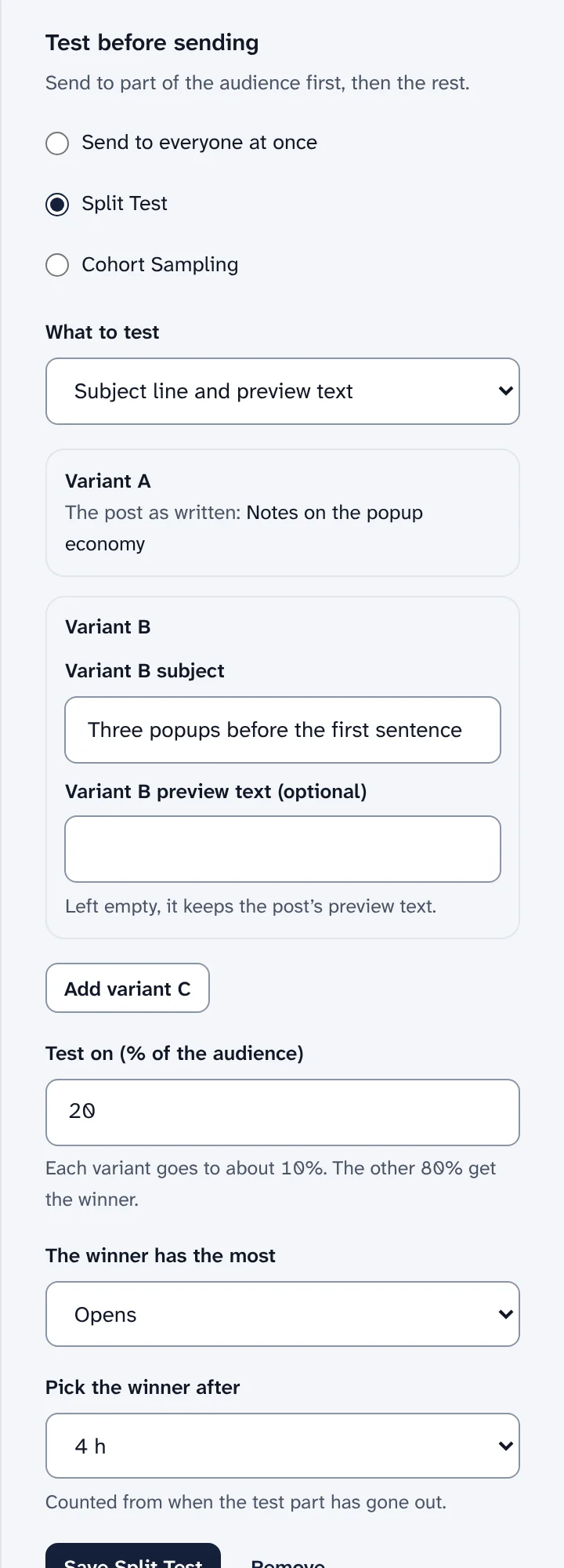
A split test of the subject line. -
Step 7
Watch the send report
The report opens as soon as you send and updates while the post goes out. It counts people, not machines: privacy proxies such as Apple Mail and company link scanners are counted apart.
- Delivered, opened, clicked, unsubscribed, bounce rate, complaint rate, failed, and an estimate of the sending cost.
- Links with the people who clicked each one, and a click map of the email as it went out.
- Send again to people who didn't open, as a new draft with the same content.
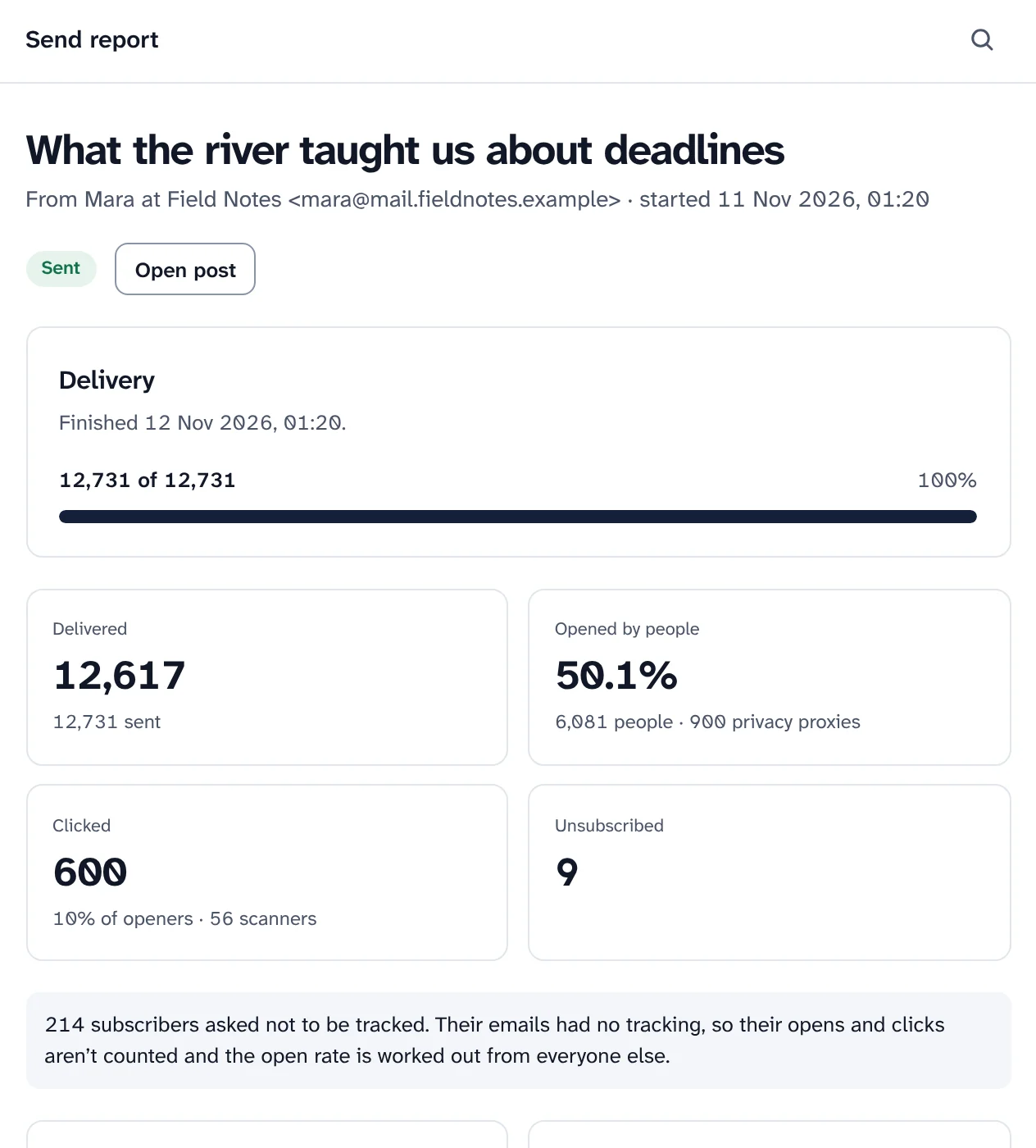
A finished send report.
Write your first post on your own install.
Swarm is free and open source. Install it on your Cloudflare account and follow Getting started to your first send.
Want to look first? pnpm swarm --dry-run shows every step and changes nothing.